
Crypto Verification Documents: Checklist
Checklist for crypto KYC: required ID and proof-of-address, file quality checks, and camera/device setup to avoid delays.
Most crypto verification delays come from a few simple issues: expired ID, name or address mismatches, old proof-of-address files, blurry photos, or camera permission problems.
If I want to avoid getting stuck, I need to check three things before I start:
- My ID: passport, driver’s license, state ID, or residence permit
- My proof of address: a recent utility bill, bank statement, or other file the platform accepts
- My device: working camera, camera access turned on, and a stable internet connection
A few details matter a lot. My legal name has to match my ID exactly. My residential address has to match the form and the address file. My ID should stay valid for at least 30 more days, and proof of address is often expected to be from the last 3 months. A bill from 4 months ago can fail that check.
Before I upload anything, I do one last review:
- ID is current and easy to read
- Address file is recent
- Full document is visible
- No blur, glare, or cut-off edges
- File type matches the upload rules
- No screenshots if the form doesn’t allow them
This is a prep checklist, not an approval guarantee. The final step is simple: I follow the live prompts on the platform screen and make sure every detail matches before I submit.
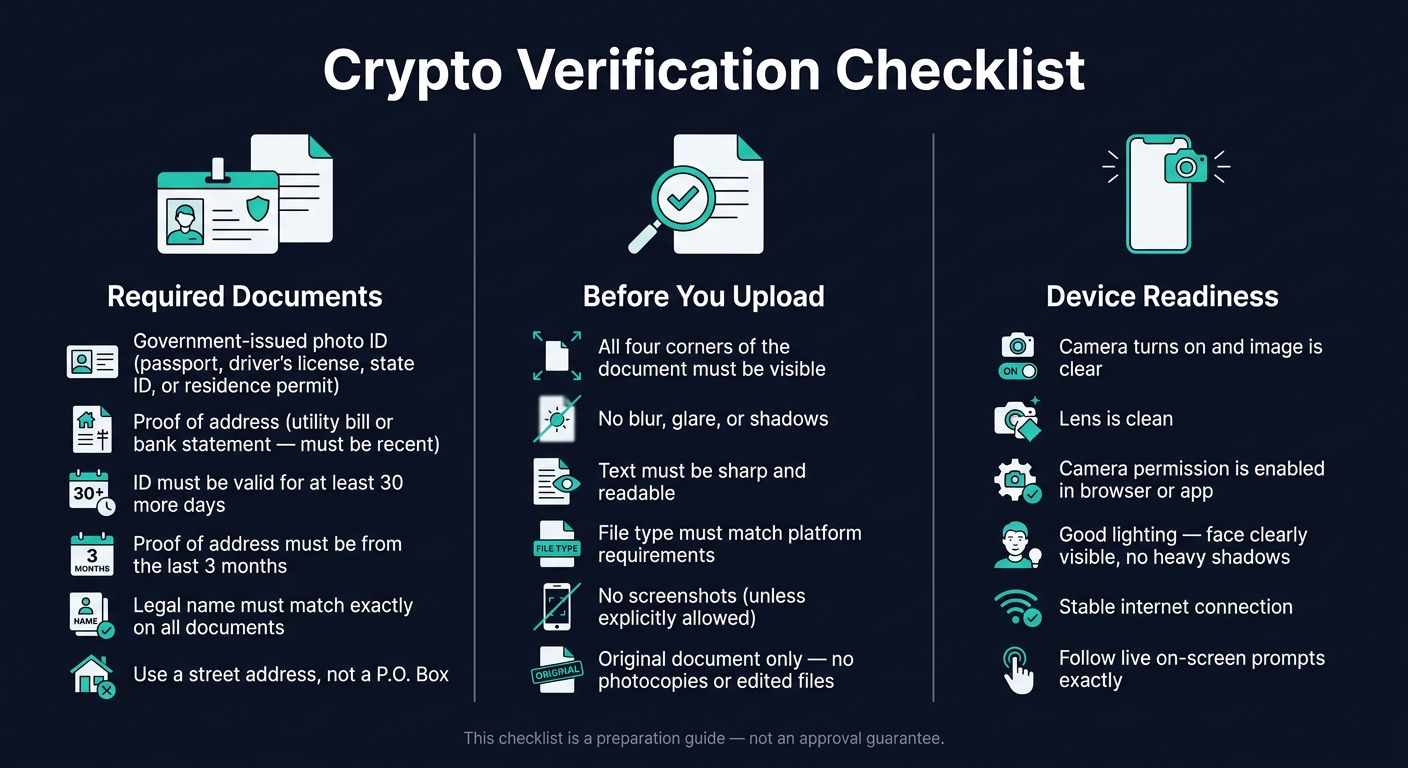
Crypto Verification Checklist: Documents, Quality & Device Setup
Gather the Right Identity and Address Documents
Before you open the form, pull together the two documents it asks for: a government-issued photo ID and proof of address.
Accepted Government-Issued Photo ID
Accepted IDs include a passport, state driver’s license, state ID card, or residence permit. Use the original document, not a photocopy, screenshot, or edited file.
If the platform asks for both sides of your ID, upload both. Make sure your full legal name and date of birth are easy to read. Also check that your ID stays valid for at least one more month.
Proof of Residential Address That Matches Your Form
Recent utility bills or bank statements are common proof-of-address documents. Some platforms also accept government-issued proof of address.
Your full legal name and physical residential address need to show clearly on the document. Use a street address, not a P.O. Box.
Match Your Details Exactly
Enter your legal name exactly as it appears on your ID, including any middle name or suffix. Even small differences can slow approval or stop it altogether.
Do the same with your address. The address on your document should match the one you enter in the form. Once that lines up, the next thing to check is file quality.
sbb-itb-0796ce6
Check Document Quality, Format, and Dates
Before you upload anything, give the file a quick once-over. A few small checks here can save you from a rejection later.
Use Clear Files With All Edges Visible
Show the full document, with all four corners visible. Make sure the image is clear and free of glare, shadows, or blur. After that, confirm that the upload format matches what the form asks for.
Check File Type and Size Rules
Match the platform’s file type and size rules before uploading. If screenshots aren’t listed as acceptable, don’t use one. Then check the dates before you start the upload.
Check Expiration Dates and Document Age
Use an ID that stays valid for at least 30 days. For proof of address, use a recent utility bill or bank statement.
Set Up Your Device Before You Start
Once your documents are ready, take a minute to check your device before you begin verification. It sounds small, but it can save you from failed uploads, frozen screens, or having to start over.
Camera, Lighting, and Face Visibility
Open your camera app first. Make sure the camera turns on, the image looks clear, and the lens is clean.
Good lighting helps a lot here. You want your face to be easy to see, without heavy shadows or glare. If the platform asks for a live selfie, follow the on-screen prompts exactly as they appear.
Browser, App, and Internet Checks
Before you start, make sure your browser or app has permission to use your camera. If that setting is blocked, the verification step may not work at all.
It also helps to use a stable internet connection so the page can load, process, and finish without timing out. Once those checks are done, go ahead and start the verification flow.
Final Review Before Submitting Verification
Before you submit, do one last pass on your details, files, and device. It only takes a minute, and it can save you from a failed upload or a follow-up request later.
Last Pre-Submission Checklist
- Name match: Your legal name should match exactly what you entered on the form.
- Address match: The address on your proof of address should match the address in your application.
- Valid ID: Use a government-issued photo ID that stays valid for at least 30 more days.
- Recent proof of address: Have a recent utility bill or bank statement ready.
- Clear files: Make sure the full document is visible, the text is sharp, and the file is not a screenshot.
- Camera and internet ready: Check that your camera works and your internet connection is stable.
FAQs
What if my name doesn’t match exactly?
Your name must match your government-issued ID exactly. Even small changes, like using “Bill” instead of “William,” can lead to a rejected verification.
Enter your personal details exactly as they appear on your documents, including any middle initials.
If you still run into name-matching or other verification issues, contact the support team at [email protected].
Can I use a digital bill or statement?
Yes. A digital bill or statement can usually work as proof of address if it comes from an official source.
For the best result, upload the original PDF file. Skip screenshots or photos of printed documents. The document should be issued within the last 90 days and clearly show your full name and current residential address.
What should I do if the camera step fails?
If the camera step fails, first check that your camera is working properly. A bright space helps a lot, and natural light is usually your best bet. Hold your device steady, take off your glasses to avoid glare, and make sure you're the only person in the frame.
If the problem keeps happening, update your browser or switch to another device with a better camera. If you still can’t complete verification, contact the Kryptonim support team with a short description of the issue and any relevant error screenshots.