
Crypto Exchange Dashboard: First Look Guide
Checklist for first-time crypto dashboard users: verify URL, wallet, fees, review quotes, track transactions, and handle alerts.
Before I do anything on a crypto dashboard, I check 3 things: the URL, my wallet address, and the fee line. That one habit can help me avoid a bad link, a wrong destination, or a higher total than I expected.
Here’s the short version of this guide:
- I make sure I’m on an official Kryptonim domain and I look for the padlock icon
- I remember that Kryptonim is non-custodial, so my crypto goes to my own wallet
- I read balances in the right order: total, available, pending, and estimated USD value
- I review a buy quote before paying, including the $10 minimum, fees, payment method, and wallet address
- I use the dashboard to check markets, history, settings, and support
- I treat alerts as simple next steps: verify, review, or contact support through official channels
A few facts stand out. The minimum purchase is $10.00. Card payments usually clear faster than bank transfers through Volt, which can take up to 3 business days. And because the final price is locked when payment arrives, the crypto amount I receive can differ from the first quote.
If I’m new to the dashboard, I don’t need to learn every screen at once. I just need to know where to check balances, how to review a buy quote, where to find account tools, and what to do when a security alert appears.
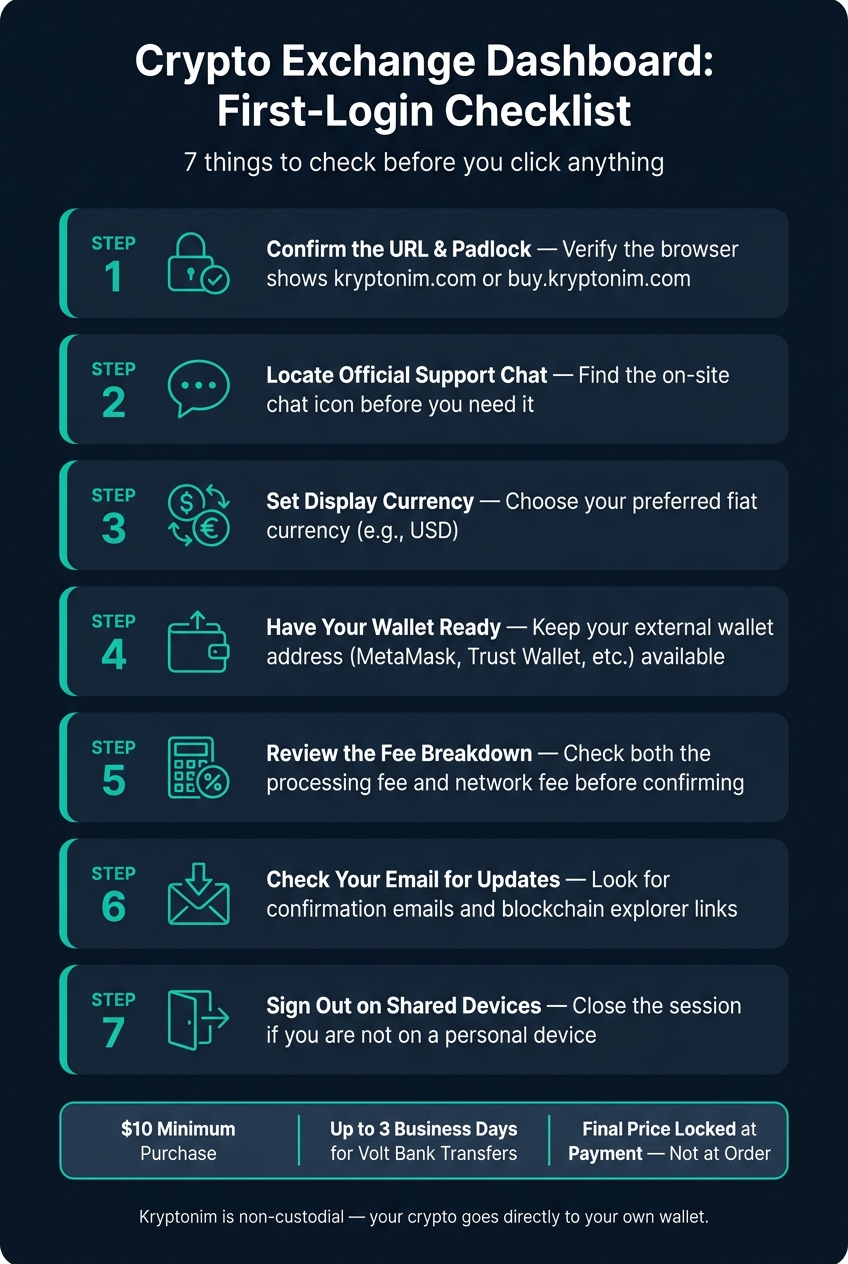
Crypto Dashboard First-Login Checklist: 7 Steps Before You Click
How to read your wallet view without misreading balances
Kryptonim does not hold your crypto. Your balance shows up in your external wallet app, such as MetaMask, Trust Wallet, or Coinbase Wallet. Once your purchase arrives in your wallet, check the balance labels in this order.
Know the difference between balance, available balance, and pending funds
Here’s what each label means:
| Label | Meaning |
|---|---|
| Total Balance | The total amount of a specific cryptocurrency held at your personal wallet address. |
| Available Balance | Funds that have cleared all blockchain confirmations and are ready to be sent or swapped. |
| Pending Funds | Purchased assets that are still being processed on the blockchain or awaiting bank verification. |
| Estimated Value | The current market value of your holdings in U.S. dollars. |
The gap between these numbers is usually temporary. Most transactions confirm in minutes, but bank transfers can take longer. If your balance hasn’t updated yet, the transfer is still confirming.
If the amount still looks off, open the confirmation email and use the explorer link to check the transfer. Also, the final crypto amount you receive may be slightly different from the quote shown at checkout. That’s because the price is locked when Kryptonim receives your payment, not when you place the order.
Open an asset and check its transaction history
After your purchase, check the confirmation email for a blockchain explorer link. Use it to track the transaction status.
Then open the asset in your wallet and review the recent activity. Before you send anything, confirm the asset name and the network. Kryptonim primarily supports the Polygon network, so your wallet needs to work with both the network and the specific asset. If you send crypto to the wrong or incompatible wallet address, the transaction can’t be reversed, and refunds aren’t available.
sbb-itb-0796ce6
How to review a first purchase in the buy section
The buy section is a short review step. You pick the crypto, enter the amount, and check the quote before paying. Use the buy panel to confirm the order before it leaves the dashboard.
Before you confirm anything, review the fiat amount, crypto amount, fees, wallet address, and payment method.
Follow the buy flow from amount entry to confirmation
After you enter your fiat amount, the interface shows an estimated crypto amount - the estimated amount of crypto you should receive.
Before you move ahead, check each item on the confirmation screen:
- Fiat amount: Make sure the dollar amount is right. The minimum purchase is $10 or the equivalent shown on the screen.
- Crypto amount: Check the estimated amount of crypto you’ll receive.
- Fees: Review both the processing fee and the network fee. The network fee can go up when network demand rises.
- Wallet address: Double-check the destination wallet address.
- Payment method: Confirm whether you’re paying by card (Visa, Mastercard, or Maestro) or by bank transfer through Volt.
If anything looks off, stop there. The purchase will not go through. After that, compare the quote and total fees with what you expect.
Check the quoted rate, fees, and crypto amount before confirming
The quote can still change before the payment clears, so it’s smart to compare the rate with the total fees before you confirm. The quoted price is only an estimate. The final price is locked when the payment arrives.
Card payments usually clear faster than Volt bank transfers, which can take up to 3 business days. That matters because faster card processing leaves less time for the quote to move.
The fee breakdown includes a processing fee and a network fee. If the network fee is higher, that usually means the network is congested.
Do not confirm the purchase if any detail is wrong.
How to use the markets tab, account menu, and settings
Once you’ve gone through the buy section, the rest of the dashboard is mostly for checking info and managing your account. You’re not placing orders here. Instead, you’re looking at market data, reviewing account details, and tightening up your settings.
Browse the markets tab without placing an order
Open the Markets tab when you want to compare prices without buying anything. It shows live prices and estimated asset values, so you can get a sense of the market before taking any action.
You can also switch the display currency to USD. That makes price comparisons easier if you want to view everything in a format that feels familiar.
Find account history, payment methods, and support
Use the account menu to review your profile tools and transaction records. This is also where you can check your verification status and finish any pending identity checks.
Your transaction history gives you one place to look back at past activity. For payment methods, you’ll see the options you’ve used before, such as a card or bank transfer method.
If something goes wrong, support is available through the on-site chat icon or by email at [email protected].
Adjust settings for display, alerts, and active sessions
Go to Settings to set the display currency to USD and update things like display, language, and notification preferences. You can also review active sessions and sign out of any device you don’t recognize.
After that, check your security alerts so you can catch unusual activity right away.
How to handle security alerts and do a first-login check
Match each security alert to the right first action
Some first-login prompts are required identity checks. Treat each alert like a clear next step: verify, review, or contact support.
The table below matches common alerts with the right first response:
| Alert Type | What It Means | First Action |
|---|---|---|
| Verification Request (KYC) | Identity check required by regulation | Complete the on-screen identity check with a valid ID and face scan |
| Transaction Confirmation Email | Kryptonim has sent the assets | Click the blockchain explorer link in the email to verify the status on the network |
| Transaction Failure | Payment or compliance issue occurred | Review your details, then contact official support |
| Price Change Notice | The market moved between order and payment | Review the final quoted rate, as it is determined when payment is received |
| Unknown Support Contact | Unsolicited email or message claiming to be Kryptonim | Do not click links; use official support only |
A good rule here is simple: if the alert asks for identity checks, complete them on the site. If it involves a sent transaction, confirm it on the blockchain explorer. If something feels off, stop and use official support only.
First-login dashboard checklist
Before you click around the dashboard, take a minute to check the basics:
- Confirm the URL and padlock icon - your browser should show
kryptonim.comorbuy.kryptonim.com - Locate the official support chat icon - use it if you need help during setup
- Set the display currency - choose your preferred fiat currency, such as $USD
- Have your wallet ready - keep your external wallet address available
- Review the fee breakdown - check the processing fee and network fee before confirming
- Review your email for updates - look for confirmation emails and any blockchain explorer links
- Sign out on shared devices - close the session if you are not on a personal device
This check takes almost no time, but it can save you from a bad click or a wrong wallet address. On a first login, that little pause matters.
FAQs
Why doesn’t my wallet balance update right away?
If your wallet balance doesn't update right away, it's usually due to blockchain processing time. Kryptonim sends your purchased assets as soon as your payment is confirmed, but the transaction still needs to be processed and verified on the public blockchain.
You can check the live status of your transaction using the blockchain explorer link in your confirmation email.
How do I know my wallet address and network are correct?
Make sure your wallet supports the exact blockchain network you pick at checkout. Then paste in your wallet address and check the first and last five characters twice before you confirm.
Blockchain transactions can't be reversed. So if you use the wrong address or pick a network your wallet doesn't support, your funds could be gone for good. If you're sending a larger amount, it's smart to send a small test transaction first - usually $10.00 to $50.00 is enough.
Why can my final crypto amount differ from the first quote?
Your final crypto amount can be different from the first quote because the exchange rate is set when your payment is received, not when you place the order.
Crypto prices can move while your payment is being processed. On top of that, network fees and payment delays can change the final amount too.
The rate is locked only after your payment is confirmed.